# This is an executable cell
print("Hello World!")
Hello World!This is an example of the Jupyter .ipynb document format


# This is an executable cell
print("Hello World!")Hello World!# Setting variables in Python
x = 42
x42# Variables persist after being set in previously executed cells
x42You can use: - Bold and italic text - Lists (like this one!) - Links - inline code - And even LaTeX math: \(E = mc^2\)
This makes notebooks great for explaining your code!
# You can perform calculations across cells
y = 10
z = x + y
print(f"x ({x}) + y ({y}) = {z}")
# Notebooks make it easy to import and use libraries
import math
import random
# Generate a random number and calculate its square root
num = random.randint(1, 100)
sqrt_num = math.sqrt(num)
print(f"The square root of {num} is {sqrt_num:.2f}")The square root of 29 is 5.39# Visualizations appear inline!
import matplotlib.pyplot as plt
import numpy as np
x_values = np.linspace(0, 10, 100)
y_values = np.sin(x_values)
plt.figure(figsize=(8, 4))
plt.plot(x_values, y_values)
plt.title('Sine Wave')
plt.xlabel('x')
plt.ylabel('sin(x)')
plt.grid(True)
plt.show()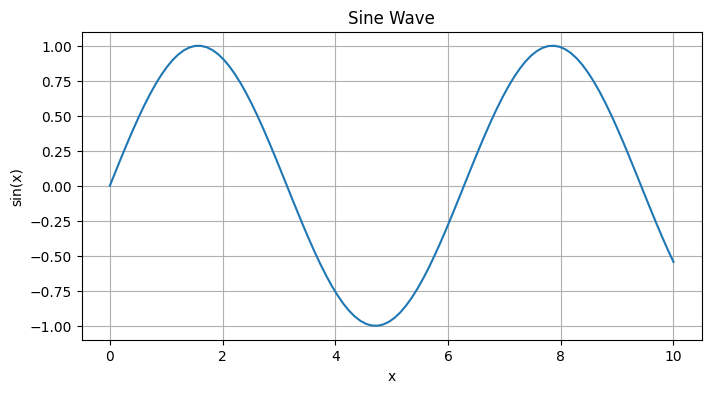
Run the cell below to see how notebooks handle errors.
The error appears in the output, but other cells continue to work.
# This will cause an error
result = 10 / 0
--------------------------------------------------------------------------- ZeroDivisionError Traceback (most recent call last) Cell In[9], line 2 1 # This will cause an error ----> 2 result = 10 / 0 ZeroDivisionError: division by zero